Updated Version Expected 07/14/04
Making Sprite Comics in JASC Paint Shop Pro 7
By David "Squeaks" Eakes
First things first. Open PSP. Image
Now create a new image by selecting File, and New Image. (Ctrl+N)

I like my panel size to be 250 x 200, I recommend something close to this size.

Step 1: Background
On you new image, select the paint bucket tool and then a color.
![]() |
This is your color palette. The top two
colors are foreground and background colors. The two colors under styles are you foreground and background, slightly different from the colors at the top. These can be plain colors, gradients (color shifts, like the foreground), textures, or no color at all, as seen in those two textures. (Note: when selecting a texture to color/paint/draw/etc. select the texture under either the foreground or background style, NOT where it says textures.)
I want a gradient for my background, so I chose the default gradient "summer field." You can use a default gradient, or make your own; it's your choice. |

I now have a background.
Step 2: Adding Sprites

Open your sprite sheets (Ctrl+O). An example of which can be seen here.

I chose this sprite. I used the lasso tool to grab him.

Now we need a new layer to put our sprites on, so select the New Raster Layer as shown

The default settings are good, hit [OK].

Notice the Layer Palette (if it's
not open, open it using View, Toolbars... . You will also need the Tool Options
palette, so open it as well)
You now have a second layer. Layer 2 will be your sprite layer, and Layer 1 will
be your background.

Set your background style/color as white (#FFFFFF). This way when you Paste as Transparent, white disappears. (If the sprite sheet's background color had been, for instance, blue, you would set your background color to blue and then Paste as Transparent)

White is now the background.

Right click the title bar of your image and Paste As Transparent

Excellent....wait a minute...part of
Reds's helmet was white so it disappeared... ok, Edit, Undo (Ctrl+Z)
Try again, this time pasting as a new selection.

Uh-oh...white outline. Let's fix it!
Select the Magic
Wand tool

Check your tolerance on the Tool Options...hmm, mine's too high for this selection, meaning, any R+G+B color within 75 of my color will also be selected... an example would be that if I selected Red (#FF0000), Brick Red (#CC0000) would also be selected-as well as all colors within 75 on either side of #FF0000

That's better. If this value of 25 is too high, adjust accordingly.

Click the white area. If you didn't get all of it. Hold Shift and click the areas you missed.

There, no more ugly whiteness.

Paste the rest of your sprites. In the case of Tails, I was able to paste as transparent.
Very good. Now to the Word bubbles.
Step 3: Word Bubbles

Select the Preset Shapes tool.

In Tool Options, click the little triangle and scroll to callouts.

As you know, I use the text boxes for my word bubbles, but the principle is the same

Whoops, make sure Retain style and Create as vector are checked.

Ok, drag your new word bubble out, and look at that, a new layer! This one is a Vector layer, as opposed to the Raster Layers you worked with earlier. Layer 3 will be your word bubble layer.

The bubble is too opaque...I want to see through it a little. So I drag that bar down to 80. That's my opacity value; notice how I can see through the bubble partially now? I'm seeing 20% of what is behind it.

I'll need three bubbles for this panel.
Step 4: Text

We need a new vector layer for our text.

Default looks good again.
Select the Text
tool.

This is your Text dialogue box. Stroke is your outline, and Fill is the main color of the text. Again, only worry about style.
I want Verdana Font, 10 point, Bold, Italic, left aligned, white, vector...uh-oh...I have a stroke...better turn it off. Click the triangle, and scroll over to null.

There. Good. (You've seen Antialias a lot by now. All it does it smooth text and lines by making certain pixels partially transparent)

Make sure your text tool is not touching a bubble when you click your image. your text will wrap around your bubble. Instead, click outside, then after the text is created, drag it into the word bubble.

But wait...the text is too big for the bubble, better make the box bigger...there it is, the bottom one on Layer 3. Click it.


Very good, select Layer 4 again.

And now we have a finished panel.

File, Save As... (F12) I would save it as .psp or .psd because you may have to come back and edit it later, and saving in a one layer format (such as .jpg, .gif, .bmp, .png) makes life miserable.

Now it's saved as 1.psp...notice how the asterisk (*) is gone? That was an indication there were unsaved changes.
Step 5: Special Effects


This one is easy, just select the Draw tool, make sure you're on a vector layer and that Create as vector are selected and in this case, I put the lines around Reds's head.

Now for a more complicated one. I want it too look like Tails and Reds are juxtaposed against a bright light. First make sure the Sprite Layer is selected.

Now, I want to turn them black, so go to Brightness/Contrast

There, good

Now for the light. Select Layer 1, and then select Sunburst

Right there looks good. (The only difference from the Default presets is the location of the burst)

Ok, now I want to put MagmaMan in as if appearing in a burst of light. So, I select layer 2 and paste him.

While he's still a floating selection, I'm going to color him a solid color so that his identity remains a mystery a little longer. Select the paint bucket tool.
I want him gray,
so I select #808080 as my foreground.

And here's the finished product.

More with sunbursts, both on Layer 1. This time, I chose a color and reduced the Circle brightness to zero.

Now for the funky warp into a battle thing...I usually do something different each time.

This is the Warp effect only on Layer 1
It's not ready yet...let's do something else to it.

First, Merge all the layers (WARNING: you will not be able to edit individual layers after this point unless you Undo everything you do after this point)

Notice on the Layer Palette, there is only one layer.

Let's use the pinch effect.

On max...

Nice, but not quite done...it needs a bit of a blur.

Blur it.

Now add a little motion blur.

10 pixels at 90 degrees sounds good.

yep, looks Wooshy to me.
Experiment with other effects.
Step 6: Putting your comic together
Open your panels that you saved earlier. I have 6, here is an illustration.

Let's make a New image large enough to hold our panels, 1000 x 1000 looks good

I like to turn on the grid and rulers (if they're not on) during this phase. It makes lining up your panels easier.

Copy each panel as a merged image.
Line up your first panel using the grid, personally, I like 60 pixels above and 5 pixels on each other side. Image

Ok, now all your panels are aligned on one image.

Now, turn off your grid, and change your canvas size to fit your comic since 1000 x 1000 is probably too large.

This works for me...3-5 pixel spaces plus 2-250 width panels is 515, 60 above, 25 below, 2-5 pixel spaces, and 3-200 length panels is 695. You'll probably have to compensate for bottom and right placement as well.

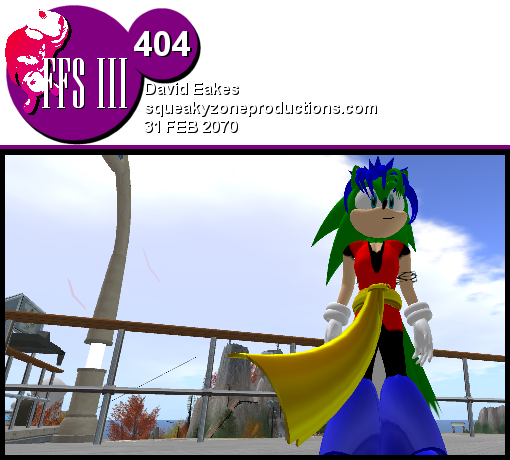
Almost done, now we nee a background, logo, number, date, author, and site info.

Make a new raster layer and put it behind the panels. I used the red lave texture here, you may use whatever

Now, place the logo in a place where you can still read everything else. Place it on a layer above the panels.

Finally, add the text info you need.
Congratulations, you've finished a comic in Paint Shop Pro 7. I hope I have helped.

This tutorial is the intellectual work of David Eakes, please do not repost or edit without permission.
E-mail: webmaster@squeakyzoneproductions.com
Site: www.squeakyzone.com